
Modify User Application and Business Unit Access
The Zeta Login controls a user’s inclusion in User Groups, as well as their access to Zeta applications and Business Units. Typically, a user’s access privileges are defined when their Zeta Login User Profile is initially created. However, an Organization Administrator can later modify a user’s access privileges.
Note: This feature is available for Organization Administrators.
The platform provides two methods of modifying a user’s access privileges:
-
From the user’s App Access tab in the User Workspace, add or remove access to one or more Business Units and applications.
-
From the Users tab in the Administration environment, add access to one or more users to one or more User Groups, Business Units, and applications (you can’t remove access using this method). This option also allows you to assign a custom Role if the selected application supports the App Attributes feature (see Role Assignment below for details on this feature).
App Access Tab
To modify a user’s access from the App Access tab in the User Workspace:
- Log into the Zeta Login User Workspace.
-
Click your profile icon in the top-right corner of the screen. The Profile Info pop-up window is displayed.
-
Within the Profile Info pop-up window, click Zeta Login Administration. This will take you to the Zeta Login Administration environment, with the Users tab selected by default.
-
Search for the desired user (see View All Users for more information on the search options).
-
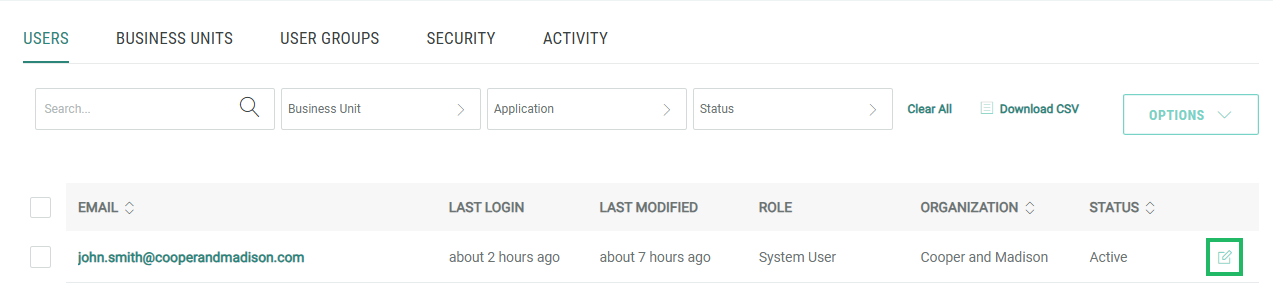
Next to the desired user, click the Edit icon. The User Workspace for the selected user is displayed, with the Profile tab selected by default.
-
Select the App Access tab. This tab displays the user’s current Business Unit / application access privileges.
-
Click Modify Access. The platform displays a grid of Business Units by application.
-
Filter the list of Business Units by entering all or part of a Business Unit name in the Search field.
-
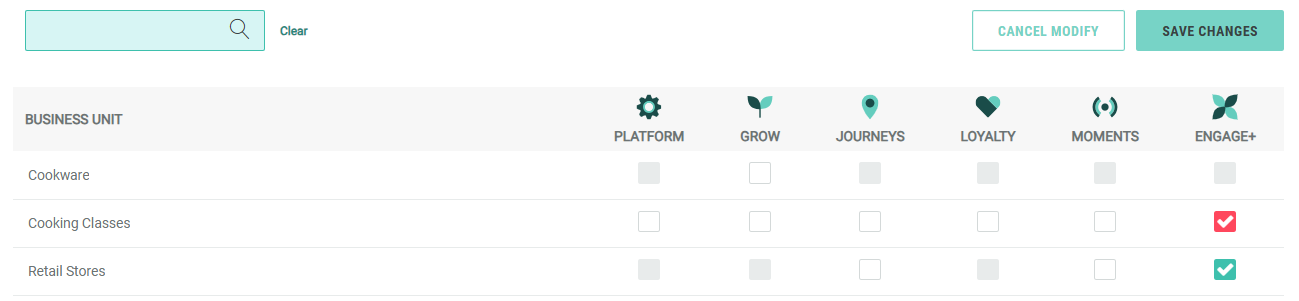
Check one or more check boxes to grant this user access to a specific Business Unit in a specific application. Disabled check boxes represent instances where a Business Unit is not enabled within that application.
-
Uncheck one or more check boxes to remove this user’s access to a specific Business Unit in a specific application.
Modified access appears as a red check box, which allows you to distinguish it from existing access. Existing access appears as a green check box. For example:
-
Click Save Changes. Or click Cancel Modify to discard the changes. A confirmation dialog box is displayed; click Yes
-
A success message is displayed; click OK.
Users Tab
To modify a user’s access from the Users tab in the Administration environment:
-
Log into the Zeta Login User Workspace.
-
Click your profile icon in the top-right corner of the screen. The Profile Info pop-up window is displayed.
-
Within the Profile Info pop-up window, click Zeta Login Administration. This will take you to the Zeta Login Administration environment, with the Users tab selected by default.
-
Search for the desired user (see View All Users for more information on the search options).
-
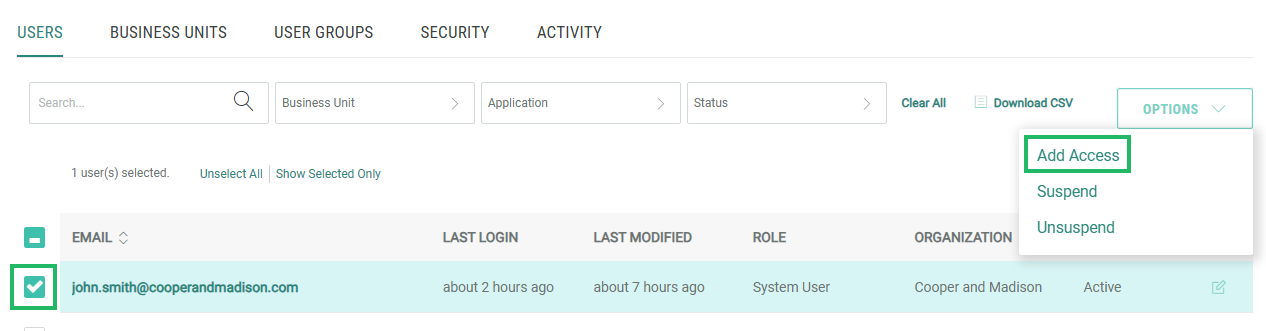
Check one or more users.
-
Select Options > Add Access.
-
If you have User Groups enabled in your Organization, the Select User Groups pop-up window is displayed. Check one or more User Groups, then click Next. Or, to not assign this user to any User Groups, click Skip Assigning Group.
Note: If you added the user to at least one User Group in the previous step, the platform will automatically assign this user to the applications / Business Units defined in the User Group, allowing you to skip the following steps. User Groups streamline the process, so you don’t have to make these assignments manually for each user (see Getting Started with User Groups for more information). If you added the user to at least one User Group, the platform displays a summary of the new user’s access privileges granted by their User Group(s). You can click a User Group name within this summary to view the User Group Details screen.
-
If you didn’t add the user to at least one User Group in the previous step, the Add Business Unit to Users pop-up window is displayed. Optionally search for a Business Unit by entering all or part of its name in the Search field.
-
Check one or more Business Units to which the user(s) should be assigned. Optionally check Select All to automatically select all displayed Business Units.
-
Click Next. The Add Application to Users pop-up window is displayed.
-
Select one or more applications to which the user(s) should be assigned.
Note: Some applications have an additional option to manually assign an application-specific Roles to the user(s). See Role Assignment below for more details on this process.
-
Click Done.
-
A success message is displayed; click OK.
Role Assignment
When adding a user to a new application, the platform assigns a default Role to the user (for example, the default role Loyalty for is “CSR”). Please note that this Role is different from the Zeta Login Role, and governs the user’s access privileges within that application.
In addition, some Zeta applications provide an option called App Attributes, which allows administrators to select the desired application-specific Role, and also to customize the privileges granted to the user by that Role.
Note: The App Attributes feature must be enabled for your Organization. In addition, App Attributes must be enabled for a Business Unit. Please speak with your Zeta team for more information. Currently, this feature is available only for Grow by Zeta and Loyalty by Zeta.
If an application has a manual Role assignment option, an Add Roles button is displayed beneath the application icon when you select it.
To manually assign an application-specific role to a user:
-
After selecting an application within the Add Applications to Users pop-up window, click Add Roles beneath the select application. The Add Roles pop-up window is displayed.
-
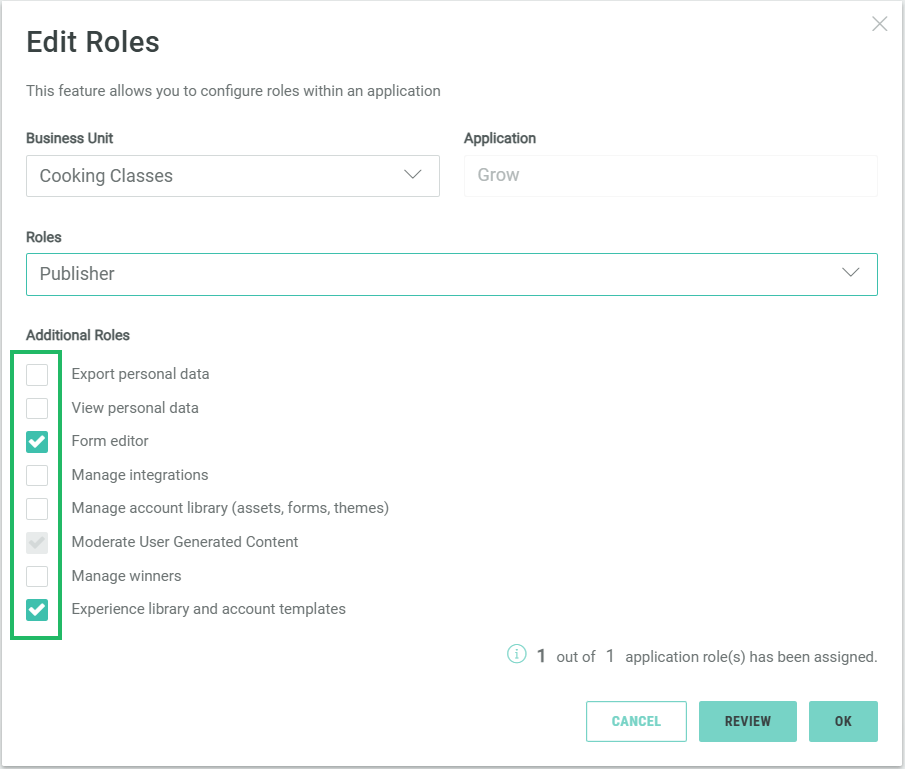
From the Roles drop-down menu, select one or more standard Roles.
-
Based on the selected Role, you may be able to customize the user’s access privileges by adding one or more additional permissions. Beneath Additional Roles, check one or more available permissions.
-
Optionally click Review to see a summary of the user’s selected Role assignment.
-
When finished, click OK to return to the Add Application to Users pop-up window.
-
Click Done.
-
A success message is displayed; click OK.
